Adjustable ASIO buffer
Lower the buffer for tight monitoring while tracking, or raise it for dense mixes that need more processing headroom.
Buffer size guide
ASIO4ALL is the free, low-latency universal ASIO driver that lets FL Studio, Ableton Live, Cubase, REAPER and other DAWs record and play through your built-in sound card or USB audio device, with no manufacturer ASIO driver required. Download ASIO4ALL 2.22 and get responsive monitoring on Windows today.
Overview
ASIO4ALL is a universal Windows ASIO driver developed by Michael Tippach. It connects an ASIO-capable application to the input and output devices you already have, working on top of the WDM audio drivers installed with your sound card, laptop audio or USB device.
Use it when your DAW needs ASIO but your hardware has no dedicated ASIO driver: a built-in Realtek sound card, a USB microphone, a headset or a simple USB audio adapter. If your interface ships with a supported manufacturer ASIO driver, compare both with the projects and hardware you actually use.
Publisher overviewFeatures
ASIO4ALL gives you the essential controls for stable, responsive recording on Windows: from buffer size to which devices your session uses.
Lower the buffer for tight monitoring while tracking, or raise it for dense mixes that need more processing headroom.
Buffer size guideActivate exactly the WDM endpoints your session needs, and even combine separate input and output devices.
Device selectionSelect ASIO4ALL v2 in FL Studio, Ableton Live, Cubase, REAPER or any Windows app that supports ASIO.
DAW setup guidesKeep recorded takes in time with your backing tracks by matching reported latency to what you measure.
Latency compensationVersion 2.22 runs natively on ARM64 and ARM64EC, so modern Arm laptops get the same ASIO path.
ARM64 detailsRecord with a USB microphone in an ASIO-only DAW, with sensible defaults for common mic array inputs.
USB microphone guideHow it works
Your DAW selects ASIO4ALL v2. The driver then opens the compatible Windows WDM devices you enabled in its control panel and streams audio in fixed-size buffers.
Compatibility
Confirm the operating system, device driver and host application before installing ASIO4ALL.
ASIO4ALL is available for Windows only. macOS uses Core Audio, while Linux DAWs offer ALSA, JACK or PipeWire backends with comparable low-latency performance.
Release history
The publisher documents native Windows on Arm support, improved dropout prevention in certain cases and default settings that work with Qualcomm Aqstic mic array input.
Read the publisher's release notes| Version | Release date | Main change |
|---|---|---|
| 2.22 | July 23, 2026 | Native ARM64 and ARM64EC support |
| 2.21 | June 10, 2026 | USB Audio Class 1 improvements at 44.1 kHz |
| 2.20 | April 27, 2026 | Option to pause host audio from the system tray |
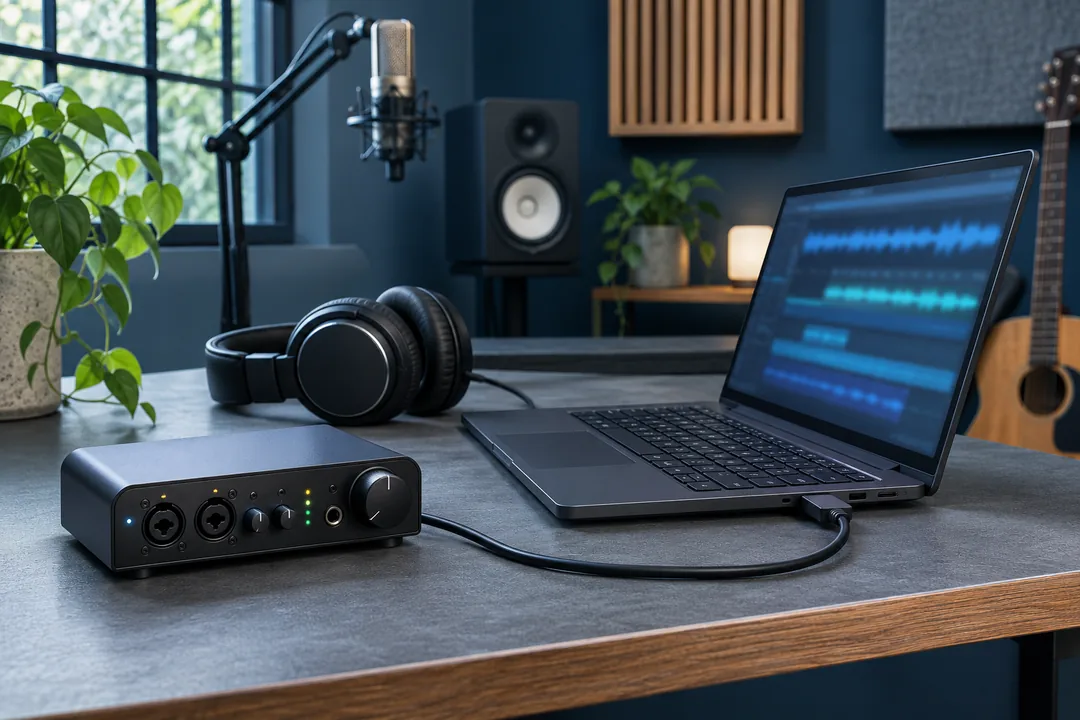
In the studio
Sketch a track on built-in audio, record a podcast on a USB microphone or play a software instrument with a lower buffer. For the first session, choose one playback device and confirm it works, then add inputs once the main signal path is stable.
Installation
Confirm one working output before you open a full recording project.
Full Windows installation walkthroughDownload ASIO4ALL_2_22.exe from the publisher, close your DAW and follow the setup prompts.
Open your DAW's audio settings, choose ASIO as the driver type and select ASIO4ALL v2.
Open the ASIO4ALL panel, activate one playback device and route the master bus to that output.
Download center
Get the free universal ASIO driver straight from the official publisher. Check the file details below, then start the download with one click.

Universal ASIO Driver for Windows
The button links directly to the publisher's file on asio4all.org. Nothing is re-hosted or modified.
Pricing and terms
The publisher permits free end-user use, including commercial audio work. Resale and bundling are subject to the publisher's terms.
Is ASIO4ALL really free?Follow the link from the publisher's download page and confirm the address is asio4all.org before opening an installer. Keep a note of the settings that already work in your DAW before you update.
Download and verification stepsDriver options
Best when your ASIO host needs access to a built-in or generic Windows WDM audio device, or several devices at once.
ASIO4ALL reviewBuilt for one specific interface, with its vendor-specific channels, mixer and controls.
Compare native ASIOWindows' own audio API, in shared or exclusive mode, for applications that offer it.
Compare WASAPITroubleshooting
Start with the symptom you can observe, then follow the checks in order.
From the blog
Get a working setup, then solve the audio problems that get in its way.
 Setup
Get ASIO4ALL 2.22 from the publisher, check Windows 10 and 11 compatibility, and confirm the driver appears in your digital audio workstation after setup.
Read guide Setup
Install ASIO4ALL on Windows, select ASIO4ALL v2 in your DAW, route a compatible output, and confirm sound before opening your main recording project.
Read guide Audio settings
Set the ASIO4ALL buffer size for tracking and mixing, calculate one buffer’s duration, and identify when the DAW overrides the control panel setting.
Read guide Troubleshooting
Find out why ASIO4ALL is missing or fails to start. Test Windows audio, the ASIO host and the WDM device list before changing other settings.
Read guide DAWs
Set up ASIO4ALL in FL Studio on Windows, connect the right playback device, route a microphone in the Mixer and tune the buffer for recording and playing.
Read guide Releases
Trace ASIO4ALL releases 2.19 through 2.22, from device fixes and USB audio improvements to native Windows on Arm support and configuration changes.
Read guideFAQ
Sixteen quick answers grouped by topic. Pick a category, then open any question.
What ASIO4ALL is, cost and safe download
ASIO4ALL is a free, universal ASIO driver for Windows developed by Michael Tippach. It sits between an ASIO-capable application, such as a DAW, and the WDM drivers your sound card or USB audio device already uses. That gives you ASIO's low-latency playback and recording even when the hardware has no dedicated ASIO driver of its own.
Yes. The publisher makes ASIO4ALL free for end users, including people who use it for paid or commercial audio work. Only resale and bundling with other products are restricted by the publisher's terms. Read our full licensing guide for details.
Yes. Version 2.22 officially supports Windows 10 and Windows 11, and it adds native ARM64 and ARM64EC support for Windows on Arm laptops. Older Windows versions are not covered by the current installer.
Download the installer (ASIO4ALL_2_22.exe) only from the official publisher site, asio4all.org. Avoid mirrors and "driver updater" tools. Our download guide shows how to check the source before you run the file.
DAW selection, control panel, buffer and sample rate
Open your DAW's audio settings, set the driver type to ASIO and choose ASIO4ALL v2 as the device. Then open the ASIO panel, enable one output and route your master bus to it. Step-by-step guides are available for FL Studio, Ableton Live, Cubase and REAPER.
With ASIO4ALL v2 selected, click the ASIO panel, control panel or hardware settings button in your DAW's audio preferences. Once a host has initialized the driver you can also open it from the ASIO4ALL icon in the Windows notification area.
Start with 256 or 512 samples. For recording and live instruments, lower the buffer one step at a time (128 or 256 samples) until you hear clicks, then go back one step. For mixing heavy projects, raise it to 512 or 1,024 samples. See the buffer size guide for the latency maths.
Use 48 kHz for video and most modern projects, and 44.1 kHz for music-only work. The important part is to set the same rate in your DAW project and in Windows sound settings for every device ASIO4ALL uses. Our sample rate guide explains why.
No sound, crackling and missing driver fixes
Usually the output you want is not enabled in the ASIO4ALL panel, or the DAW's master output points to a different channel pair. Activate the correct device (its button turns on), then re-route the master bus. The no-sound guide walks through every check in order.
Another program is probably holding the device, such as a browser, a video call or a second DAW. Close apps that use audio, then restart the DAW's audio engine. Confirm the device still plays in Windows sound settings before testing again.
Raise the buffer size first, use the same sample rate on all devices, and close CPU-heavy background apps. Switch Windows to a high-performance power plan and avoid USB hubs for audio devices. Our crackling guide covers the full checklist.
Make sure the DAW's driver type is set to ASIO, then restart it after installation. Run the installer again if the entry is still missing, and check that you installed the build matching your system. See ASIO4ALL not working for the full diagnosis.
Native ASIO, WASAPI, Mac, Linux and ARM
Yes, if your audio interface has a supported manufacturer ASIO driver, try it first: it is built for that hardware and exposes all its channels and features. ASIO4ALL is the right choice for built-in sound cards, simple USB devices and combining devices. Compare both in ASIO4ALL vs native ASIO.
It depends on the host. ASIO4ALL gives ASIO-only DAWs access to WDM devices and can combine several devices, while WASAPI exclusive mode is built into Windows and can perform similarly when the DAW supports it. Read ASIO4ALL vs WASAPI for a side-by-side comparison.
Yes. Version 2.22 adds native ARM64 and ARM64EC support, so ARM-native and emulated x64 hosts can both load the driver on Windows on Arm laptops. Details are in our Windows ARM64 guide.