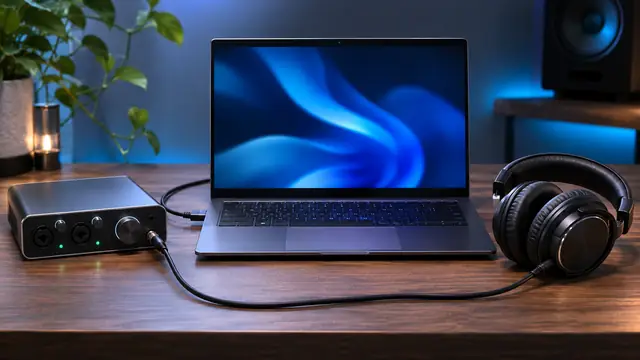
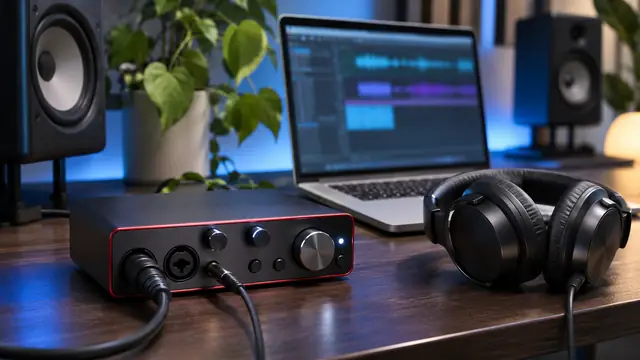
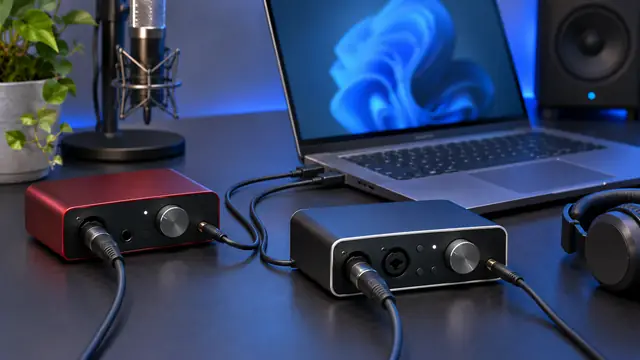
ASIO4ALL vs. a native ASIO driver for your interface
Your DAW may list both ASIO4ALL v2 and a driver named after your audio interface. The right choice depends on what the session needs. Check which channels and monitor controls each driver exposes before comparing latency.
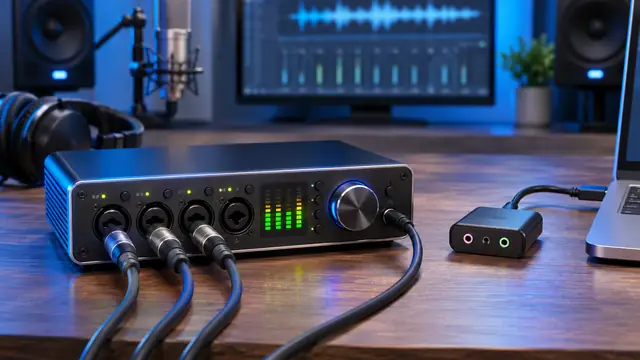
In this guide
ASIO4ALL vs native ASIO: the short answer
If your audio interface maker supplies its own ASIO driver for your model and Windows version, that native driver is usually the first one to try, because it can expose every input, output and control panel option the hardware offers. ASIO4ALL is the practical choice when there is no vendor ASIO driver, such as built-in laptop audio, a simple USB headset or a basic adapter. Deciding between ASIO4ALL vs native ASIO is less about a single latency number and more about which driver gives your session the channels, monitoring and stability it needs.
Both drivers can appear in the same DAW device list. One is named after your interface, and the other appears as ASIO4ALL v2. This guide explains how the two audio paths reach the hardware, how to compare them fairly in the same project, and how to pick the right one for the work you do most often.
Note: This site is a dedicated ASIO4ALL guide resource and is not the publisher of ASIO4ALL. Features of a native driver depend on the specific hardware and software version, so always check the manufacturer's support page for your exact model.
How the two audio paths reach the hardware
ASIO4ALL gives ASIO applications access to compatible Windows WDM audio endpoints. It works on top of the WDM driver that Windows already uses for the device. This can be useful with built-in laptop audio, a USB audio device with a compatible Windows driver, or equipment without its own ASIO option.
A native ASIO driver comes from the hardware maker and is designed for a named model or range. It talks to that hardware directly in the way the manufacturer intended, and it often ships alongside a mixer or control application.
What a native driver can add
Native drivers can expose model-specific inputs, outputs and control panel options. For example, Focusrite recommends its own ASIO driver for DAW use with supported Focusrite interfaces. Ableton's guidance follows the same pattern: use the native driver where one exists and use ASIO4ALL for built-in audio or devices without a suitable vendor driver.
- Named input and output channels that match the labels on the hardware.
- Access to vendor features such as a cue mix, direct monitoring or loopback, where the model supports them.
- A control panel tuned to that hardware's buffer and sample rate options.
What ASIO4ALL adds
ASIO4ALL is a universal ASIO driver for Windows 10 and Windows 11. Its value is that it brings ASIO support to hardware that would otherwise have none, so an ASIO-only host can still use the device. Its panel lets you enable the endpoints you want and set the ASIO buffer size.
- Works with devices that only have a standard Windows driver.
- Can let you combine compatible endpoints in some setups, which is covered in our device aggregation guide.
- Free for end users, including commercial audio work.
ASIO4ALL vs native ASIO side by side
The table below summarizes the practical differences you are likely to notice. Treat it as a starting point rather than a verdict, because the actual behavior depends on your hardware, its Windows driver and your DAW.
| Aspect | ASIO4ALL v2 | Native ASIO driver |
|---|---|---|
| Hardware coverage | Compatible WDM endpoints on many devices | The maker's named model or range |
| Channel names | Based on the Windows endpoints | Usually match the hardware labels |
| Vendor monitoring and mixer | Not part of the driver | Often available, depending on model |
| Built-in laptop audio | A common use case | Generally not offered |
| Cost for end users | Free | Usually included with the hardware |
| Where to check support | asio4all.org | The manufacturer's support page |
Notice that latency is not in the table. Both drivers let you choose a buffer size, but the total delay you hear also includes buffering in the hardware and in the underlying driver, so the same buffer setting does not guarantee the same result.
Latency, buffers and what the numbers mean
The buffer setting is the easiest number to compare, and the maths is simple: samples divided by sample rate, multiplied by 1000, gives milliseconds. At 48 kHz, 128 samples is about 2.7 ms, 256 samples about 5.3 ms and 512 samples about 10.7 ms. At 44.1 kHz, 256 samples is about 5.8 ms.
Why identical buffers can feel different
Two settings showing the same buffer size can still produce different monitoring delays because the drivers and hardware add their own buffering. The figure your DAW reports for input and output latency is the better reference, and a loopback recording is the most honest check if you have a spare output and input.
| Buffer size | 44.1 kHz | 48 kHz |
|---|---|---|
| 128 samples | about 2.9 ms | about 2.7 ms |
| 256 samples | about 5.8 ms | about 5.3 ms |
| 512 samples | about 11.6 ms | about 10.7 ms |
For a deeper walkthrough of choosing a value, see the ASIO4ALL buffer size guide. The key point for this comparison is that stability at a given buffer matters more than the lowest setting that loads.
Tip: When you compare ASIO4ALL vs native ASIO, write down the input and output latency your DAW reports for each driver at the same buffer and sample rate. Those reported figures are easier to compare than the buffer number alone.
Compare the same connections in both drivers
A fair test uses one physical output pair and one known recording input. Save a copy of the project before switching drivers, because input and output names can change between them and tracks may lose their routing.
Verify that the same track runs through the same speakers or headphones in both configurations. Where both drivers accept it, use the same sample rate and buffer setting as a starting point. Close other audio applications so neither driver is competing for the device.
A repeatable test routine
- Duplicate your project and open the copy, so the original keeps its routing.
- In your DAW's audio settings, select the native driver and set the sample rate and buffer you normally use.
- Play a short section with a steady signal and watch for interruptions, clicks or dropouts.
- Record a short passage with the same input and listen back. Include live monitoring in the check if the session needs it.
- List the hardware channels you can actually select and check any cue mix, direct monitoring or loopback controls you use.
- Switch to ASIO4ALL v2, enable the same device in its panel, match the settings and repeat steps 3 to 5.
Where to find the driver setting
The driver choice lives in each host's audio settings: FL Studio uses Options › Audio settings, Ableton Live uses Options › Settings › Audio (Preferences in older versions), Cubase uses Studio › Studio Setup › Audio System and REAPER uses Options › Preferences › Audio › Device. Ableton's own article on setting up ASIO4ALL on Windows covers the Live side in more detail.
Watch out: Some interfaces behave differently when their native driver and ASIO4ALL try to use the device at the same time. Switch drivers in one host at a time and restart the DAW if a device stops appearing.
Choose a driver for the job you do most often
For a recording session that depends on several interface inputs or a hardware cue mix, prioritize the driver that exposes those controls and stays stable under load. In most cases that will be the manufacturer's driver, but the test above tells you for certain.
With a built-in headphone jack and an ASIO-only host, ASIO4ALL is a practical candidate when the device appears in its panel. The same is true for a basic USB device that relies on the standard Windows driver.
Common scenarios
- Multichannel tracking with a branded interface: start with the native ASIO driver.
- Laptop beats on headphones: ASIO4ALL v2 with the built-in output is a sensible choice.
- USB microphone in an ASIO-only DAW: try ASIO4ALL if no vendor ASIO driver exists; see our USB microphone guide.
- Native driver missing for your Windows version: ASIO4ALL can bridge the gap while you check the maker's support page.
If neither ASIO option suits your workflow, for example because you need other apps to keep playing sound, compare against Windows' own audio path in our ASIO4ALL vs WASAPI comparison.
Keeping both drivers installed
Having ASIO4ALL and a native driver on the same computer is common. The DAW lists each one separately, and only the one you select is used by that host. This lets you use the native driver for the studio interface and ASIO4ALL for laptop speakers when you are away from the desk.
Practical housekeeping
Keep a note of which driver each project was set up with, since channel names differ. When you move a project between drivers, check every input and output assignment before recording. The current ASIO4ALL release is 2.22, available as ASIO4ALL_2_22.exe from the publisher's site, and our ASIO4ALL review covers where it fits overall.
Use a repeated recording and playback check with the same connections to compare behavior before committing an important session to a new setup. A few minutes of testing can save a session from unexpected dropouts or missing channels.
Frequently asked questions
Usually not for a branded interface. A native driver can expose model-specific channels and monitoring controls. ASIO4ALL is most useful when no vendor ASIO driver is available, such as with built-in audio.
Yes. Your DAW lists both, and you choose one in its audio settings. Save a copy of your project before switching, because input and output names can change.
The drivers and hardware add their own buffering on top of the ASIO buffer. Compare the input and output latency your DAW reports, or run a loopback recording, rather than relying on the buffer number alone.
Those features come from the manufacturer's driver and software, so check which controls each driver exposes. If your session depends on them, prioritize the driver that provides them and stays stable.
Sources and further reading

We write expert, hands-on guides for Windows musicians, podcasters and producers. Driver facts are checked against the publisher's manual and release notes; DAW steps against each vendor's documentation.